

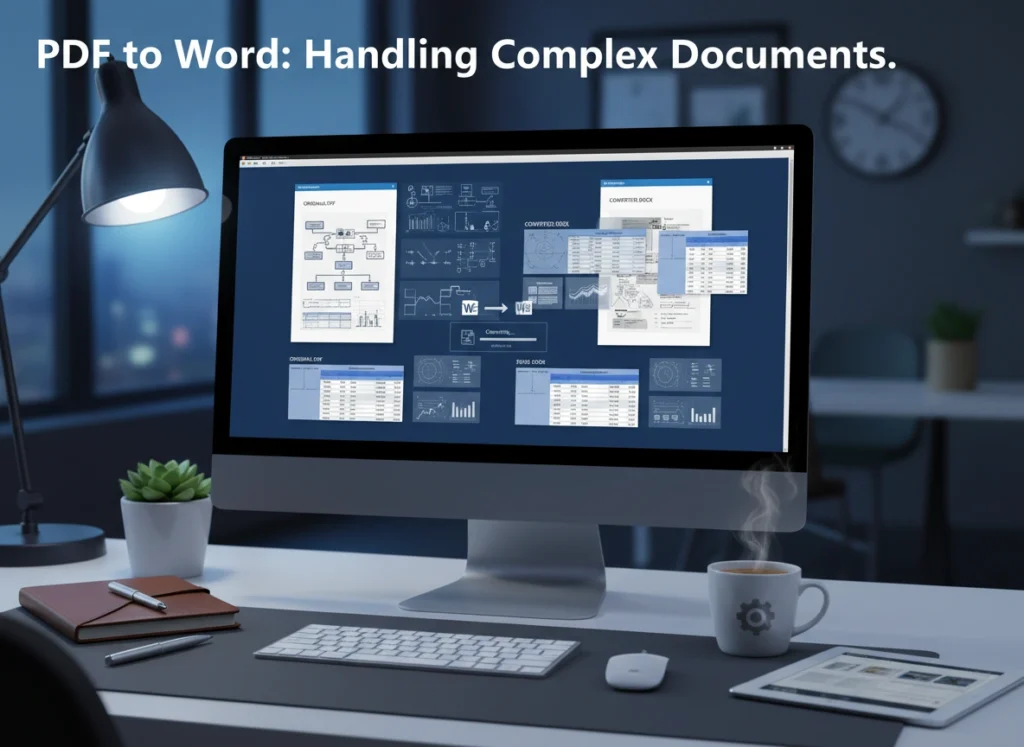

Converting a PDF file to a Microsoft Word document seems simple. For basic, text-only files, it often is. However, when you introduce complex elements like tables, intricate layouts, special fonts, and high-resolution images, the process can become a significant challenge. The resulting Word document is often a mess of broken formatting, misplaced text, and distorted images. This guide will help you navigate the complexities of PDF to Word conversion, ensuring your final document is accurate, clean, and ready to edit.
We will explore the common difficulties encountered with complex documents and provide best practices for overcoming them. You will learn about the different tools available, from basic online converters to advanced software, and discover practical tips to make the process more efficient and reliable. By understanding these challenges and solutions, you can save valuable time and avoid the frustration of manually fixing a poorly converted file.
Why Converting PDFs to Word Can Be Difficult
The Portable Document Format (PDF) was designed to be a final-form, universal file format. Its primary purpose is to preserve the exact layout of a document, regardless of the software, hardware, or operating system used to view it. Think of it as a digital printout. Microsoft Word, on the other hand, is a word processing program designed for creating and editing dynamic content. Its structure is fluid, allowing text and other elements to reflow as you type.
This fundamental difference is the root of most conversion problems. When you convert a PDF to Word, the software must interpret the fixed layout of the PDF and translate it into the editable, flowing structure of a Word document. This translation process is rarely perfect, especially with documents that contain more than just simple paragraphs of text.
Common Challenges with Complex Documents
Complex documents—such as reports with infographics, academic papers with citations, or marketing materials with custom designs—present a unique set of obstacles during conversion.
Intricate Formatting and Layouts
Documents with multiple columns, headers, footers, and specific text alignments are notoriously difficult to convert accurately. A PDF stores these elements as fixed objects on a page. Conversion software may misinterpret their relationship, leading to:
- Text from different columns merging into a single, unreadable block.
- Headers and footers appearing in the middle of the body text.
- Indents, margins, and spacing being completely lost.
Tables and Charts
Tables are a common source of conversion headaches. A simple table might convert reasonably well, but complex tables with merged cells, varying row heights, or nested tables often fall apart. You might find that the data is no longer in the correct cells, borders are missing, or the entire table is converted into a series of text boxes that are impossible to edit cohesively. Charts and graphs can suffer a similar fate, often being converted as low-quality images or losing their underlying data.
Images and Graphics
Images are another point of failure. While the image itself might transfer, its placement, size, and text wrapping are often lost. You may find images are oversized, pixelated, or stacked on top of each other. Captions can become detached from their corresponding images, and graphical elements like background watermarks or logos may be misinterpreted.
Special Fonts and Text Effects
If a PDF was created using fonts that are not installed on your computer, the conversion tool will substitute them. This can drastically alter the document’s appearance and even affect its layout if the substitute font has different character spacing. Text effects like drop shadows, outlines, or word art are often flattened or lost entirely, as they don’t have a direct equivalent in standard Word text formatting.
Best Practices for Successful Conversion
While no method is foolproof, following a set of best practices can dramatically improve the quality of your converted documents. The key is to choose the right tool and prepare your document for the best possible outcome.
Choosing the Right Conversion Tool
The tool you use has the biggest impact on the result. Converters range from free online services to powerful desktop applications.
Online Converters
For simple, non-sensitive documents, free online converters can be a quick solution. You upload your PDF, the service converts it, and you download the Word file. However, these tools often have limitations. Their conversion engines are typically less sophisticated, leading to more errors with complex files. More importantly, uploading sensitive or confidential documents to a free online service poses a significant security risk.
Microsoft Word’s Built-in Converter
Recent versions of Microsoft Word (Word 2013 and later) have a built-in feature that can open and convert PDFs directly. To use it, simply open Word and use the File > Open dialog to select your PDF. Word will display a message warning that the conversion may take a while and might not look exactly like the original. This is a convenient and secure option, and its performance with moderately complex documents is surprisingly good. However, it can still struggle with the most intricate layouts.
Dedicated Desktop Software
For the highest-quality conversions, especially for professional use, dedicated desktop software is the best choice. Applications like Adobe Acrobat Pro DC are the gold standard. Since Adobe created the PDF format, its software has the most advanced engine for interpreting and converting PDF files. These programs offer detailed options that give you more control over the conversion process, such as specifying whether to retain the layout using text boxes or allow the text to flow freely. They handle complex tables, graphics, and fonts with much greater accuracy.
Preparing Your Document and Managing Expectations
Before you even start the conversion, it’s helpful to review the PDF. Identify the most complex elements—the large tables, the multi-column layouts, the intricate charts. This helps you anticipate which areas will likely need manual cleanup after conversion. If you have access to the source document (e.g., the original InDesign or Word file), it is always better to work from that instead of a PDF.
Tips for Accuracy and Efficiency
Once you have chosen your tool, use these tips to streamline the process and ensure the final document is as accurate as possible.
1. Perform a Post-Conversion Review
Never assume the conversion is perfect. The first step after converting any document is to perform a thorough review. Open the original PDF and the new Word document side-by-side. Go through page by page and check for:
- Formatting consistency: Are headings, lists, and paragraphs styled correctly?
- Layout integrity: Are columns, images, and other elements in the right place?
- Table accuracy: Is all the data in the correct cells? Are borders and merged cells intact?
- Image quality: Are images clear and properly sized?
2. Use the “Clear Formatting” Feature
If you encounter sections with messy or inconsistent text formatting, Word’s “Clear All Formatting” tool is your best friend. Highlight the problematic text and use this feature to strip away all styling. This gives you a clean slate, allowing you to reapply your desired formatting using Word’s styles, which is far more efficient than trying to fix broken formatting line by line.
3. Leverage “Find and Replace” for Systemic Errors
Sometimes, a conversion will introduce repetitive errors, such as extra spaces, incorrect paragraph breaks, or consistent font substitution issues. Word’s “Find and Replace” function (Ctrl+H) is incredibly powerful for fixing these problems in bulk. For example, you can replace double paragraph breaks with single ones or find all instances of a substituted font and change it to the correct one.
4. Rebuild Complex Tables and Graphics
For very complex tables or charts that do not convert properly, it is often faster to rebuild them from scratch in Word rather than trying to fix the broken result. Copy the data from the poorly converted table (or directly from the PDF if possible) and paste it into a new, properly structured table in Word. Similarly, recreating a chart using Word’s or Excel’s charting tools will yield a much cleaner, more editable result than a distorted image.
Conclusion: A Strategic Approach to Conversion
Converting complex PDFs to Word documents requires more than just clicking a button. It demands a strategic approach that involves understanding the inherent challenges, selecting the right tool for the job, and being prepared to perform some post-conversion cleanup. By acknowledging that the PDF format is designed for preservation, not editing, you can set realistic expectations.
For the best results, invest in high-quality software like Adobe Acrobat Pro DC, especially if you handle complex conversions regularly. Always perform a detailed, side-by-side review of the final document. Use Word’s powerful built-in tools like “Clear Formatting” and “Find and Replace” to quickly fix widespread issues. Finally, don’t be afraid to rebuild elements like tables and charts from scratch when necessary. By adopting these practices, you can transform a potentially frustrating task into a manageable and efficient part of your workflow.