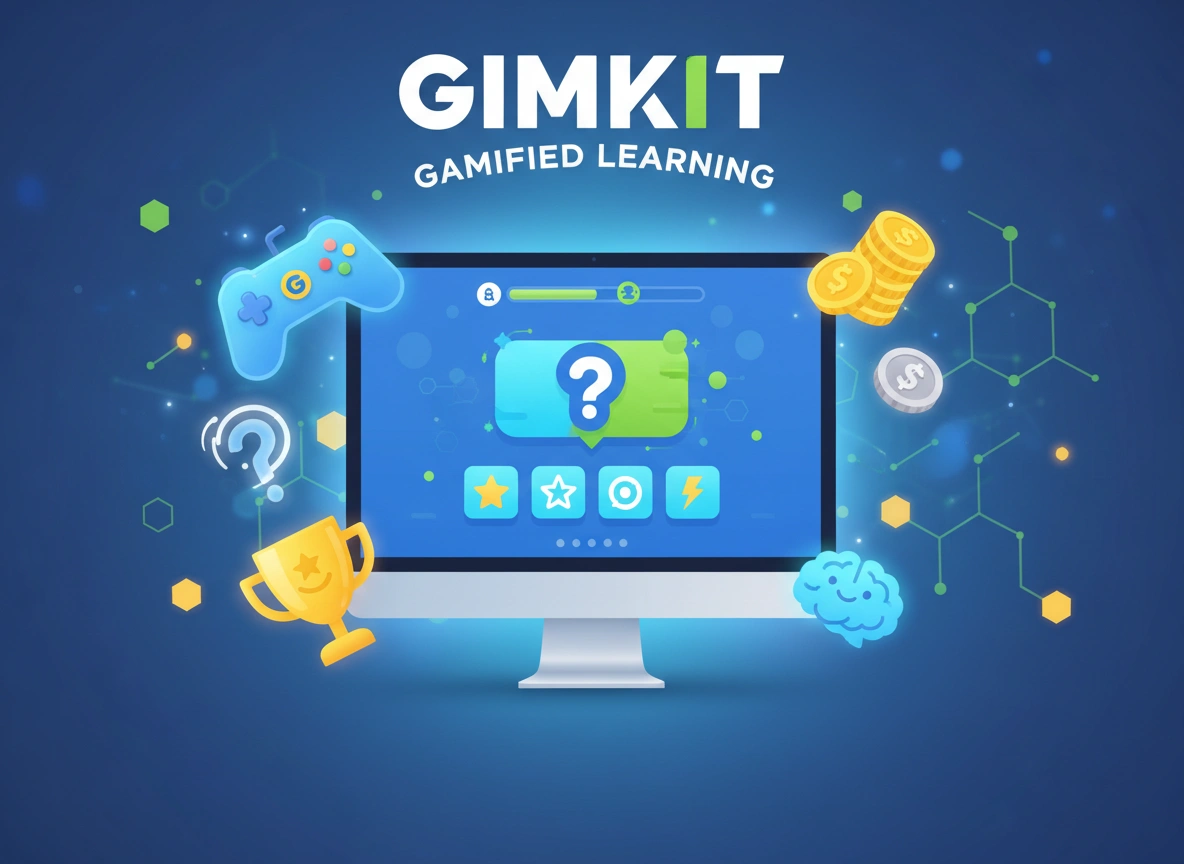



Educators are constantly searching for innovative ways to make learning more dynamic and effective. In this quest, game-based learning has emerged as a powerful tool for boosting student participation and knowledge retention. One platform leading this charge is Gimkit. It combines the thrill of a live game show with the structure of a quiz, creating an educational experience students genuinely enjoy.
While Gimkit is fantastic right out of the box, its true power lies in its deep customization options. By tailoring games to your specific curriculum, student needs, and classroom dynamics, you can transform a fun review activity into a targeted and impactful learning tool. This guide will walk you through everything you need to know to customize Gimkit games, ensuring every session is perfectly aligned with your educational goals.
What is Gimkit and Why Use It in the Classroom?
Gimkit is an interactive learning platform where students compete by answering questions on their devices. But unlike traditional quiz tools, it incorporates game mechanics that students love. Correct answers earn them in-game currency, which they can “invest” in power-ups and upgrades to increase their earning potential or affect other players’ scores. This adds a layer of strategy and excitement that keeps students hooked from start to finish.
The benefits of integrating Gimkit into your teaching strategy are numerous:
- Boosts Engagement: The fast-paced, competitive nature of the games captures students’ attention and makes learning feel less like a chore and more like play.
- Encourages Active Recall: To succeed, students must actively retrieve information from memory, a practice proven to strengthen long-term retention.
- Provides Immediate Feedback: Students instantly know if their answers are correct, allowing them to self-correct and learn from their mistakes in real-time. Teachers receive detailed post-game reports to identify knowledge gaps.
- Fosters a Positive Learning Environment: The element of fun reduces test anxiety and creates a lively, collaborative atmosphere in the classroom.
- Promotes Strategic Thinking: The in-game economy requires students to make decisions about when to answer questions and when to spend their earnings, adding a layer of critical thinking.
Getting Started: Creating Your First Kit
Before you can customize a game, you need a “Kit,” which is simply Gimkit’s term for a set of questions. Think of it as your digital flashcard deck.
- Log In and Navigate: Sign in to your Gimkit account and click “New Kit” from your dashboard.
- Name Your Kit: Give your Kit a clear, descriptive name (e.g., “Chapter 5: Cell Biology Vocabulary” or “American Revolution Key Figures”).
- Choose a Subject and Language: Select the appropriate subject and language for your content.
- Add Questions: This is where the foundation of your customization begins. You can add questions in several ways:
-
- Add Question: Manually type your question and up to four multiple-choice answers. Be sure to mark the correct one.
- Add from Question Bank: Search Gimkit’s extensive public database of questions created by other educators. This is a huge time-saver.
- Import from Spreadsheet: If you have questions in a spreadsheet, you can use Gimkit’s template to import them all at once.
- Add Audio Question: Record your voice or upload an audio file—perfect for language classes, music theory, or accessibility needs.
Once you have your questions loaded, you’re ready to explore the exciting world of game customization.
A Step-by-Step Guide to Customizing Your Gimkit Game
Customization happens right before you launch a game. After you select a Kit from your dashboard and click “Play Live,” you’ll be taken to the game options screen. This is your command center for tailoring the experience.
1. Choose the Perfect Game Mode
Gimkit is more than just one game; it’s a collection of different modes, each offering a unique experience. The mode you choose has the biggest impact on the game’s feel and objective.
- Classic: The original mode. Students answer questions to earn cash, which they can use to buy upgrades. It’s a race to reach a target cash goal. This is great for high-energy reviews.
- Trust No One: An “Among Us” inspired mode where students work to identify impostors while completing tasks (answering questions). It promotes deductive reasoning and teamwork.
- The Floor is Lava: A thrilling survival mode. Students must answer questions correctly to build towers and stay above the rising lava. It adds a sense of urgency and is excellent for quick-fire drills.
- Humans vs. Zombies: A team-based mode where a growing team of “zombies” tries to tag the “humans.” Humans can defend themselves by answering questions. This fosters collaboration and is great for larger classes.
- Draw That: A Pictionary-style mode where one student draws a term from your Kit, and others guess. It’s fantastic for vocabulary and creative thinking.
Consider your learning objective when selecting a mode. Are you looking for individual competition, team collaboration, or a test of speed?
2. Fine-Tune the Game Settings
Once you’ve selected a mode, you can dive into the specific settings. These allow you to control the game’s pace, difficulty, and economic mechanics.
- Game Goal: How does the game end? You can set it to a Time limit (e.g., 10 minutes), a Race to a specific cash amount, or All In, where the player with the most money at the end of the time limit wins. A timed game ensures you finish within a class period, while a race encourages speed and efficiency.
- Starting Cash: Give students a head start by providing some initial cash. This can help level the playing field and get them into the upgrade shop faster.
- Handicap: This setting reduces the earnings of players in the lead, preventing one student from running away with the game and keeping it competitive for everyone.
- Answer Check: Allow students to see the correct answer after they get one wrong. This is a crucial setting for turning gameplay into a learning opportunity. It’s highly recommended to leave this on.
- Music and Sound Effects: While fun, the music can sometimes be distracting. You have the option to turn it off or allow students to control their own volume.
3. Manage Power-Ups and Shop Options
The in-game shop is the heart of Gimkit’s strategic element. Here, you can control what upgrades and power-ups are available for purchase.
- Upgrades: These are permanent boosts that increase the amount of money earned per question. You can toggle specific upgrades on or off.
- Power-ups: These are one-time use items that can provide a personal advantage (like “Streak Bonus”) or affect other players (like “Icer” which freezes an opponent’s screen). Disabling more aggressive power-ups can be a good idea for younger students or to promote a more positive environment.
- Shop Appearance: You can decide if the shop appears automatically after each question or if students must click to open it. Forcing them to open it manually encourages more focused question-answering.
By carefully curating the shop, you can guide the game’s strategy. For example, disabling all power-ups turns the game into a pure knowledge quiz, while enabling only positive power-ups fosters a friendlier competition.
Tips for Maximizing Engagement and Learning
Customizing the technical settings is only half the battle. How you frame and manage the game in your classroom is just as important.
- Play in Teams: For many game modes, you can enable team play. This encourages collaboration, peer-to-peer teaching, and reduces individual pressure. Students can discuss answers and strategize together, deepening their understanding.
- Use Nickname Generator: To ensure anonymity and appropriateness, use Gimkit’s built-in nickname generator. This prevents inappropriate names and helps shy students feel more comfortable participating.
- Review the Post-Game Report: After the game, Gimkit provides a detailed report. It shows a general overview of class performance and a question-by-question breakdown, highlighting which concepts the class struggled with. Use this data to guide your next lesson or review session.
- Create “KitCollabs”: Allow students to contribute to the question set. This gives them ownership over the learning process. They have to think critically about the material to write good questions, which is a powerful study technique in itself.
- Mix It Up: Don’t use the same game mode and settings every time. Keep students on their toes by trying out different modes like “Trust No One” for a change of pace or “The Floor is Lava” for a quick, high-energy warm-up.
Conclusion: Your Classroom, Your Rules
Gimkit is more than just a fun break from traditional instruction; it’s a versatile educational tool that can be precisely molded to fit your curriculum and your students. By moving beyond the default settings, you unlock its full potential. You can adjust the pace for different energy levels, focus on collaboration with team modes, and use post-game analytics to inform your teaching.
Customization allows you to create an experience that is not only engaging but also purposeful. It transforms review sessions into memorable events, helps solidify complex concepts, and gives you valuable insight into student comprehension. So take the time to explore the settings, experiment with different modes, and tailor your Gimkit games. You’ll be building a more dynamic, effective, and joyful learning environment for everyone in your classroom.
Please click here for more info